Driver Verification
Follow these 8 quick steps to export your Google Timeline data and email it to us. It takes about two minutes.
Watch the walkthrough
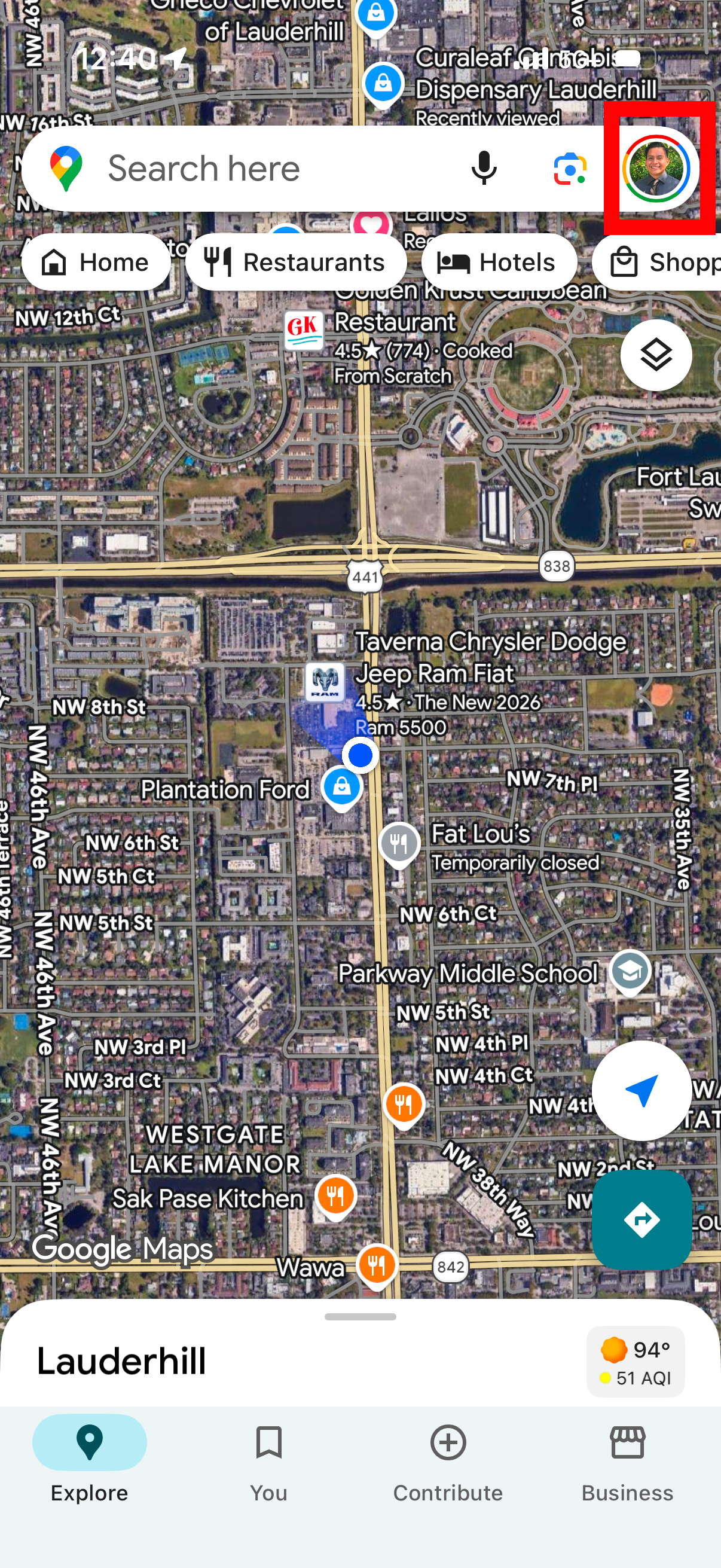
Open the Google Maps app on your phone. Make sure you're signed in to your Google account.
In the top-right corner, tap your profile picture or initial.
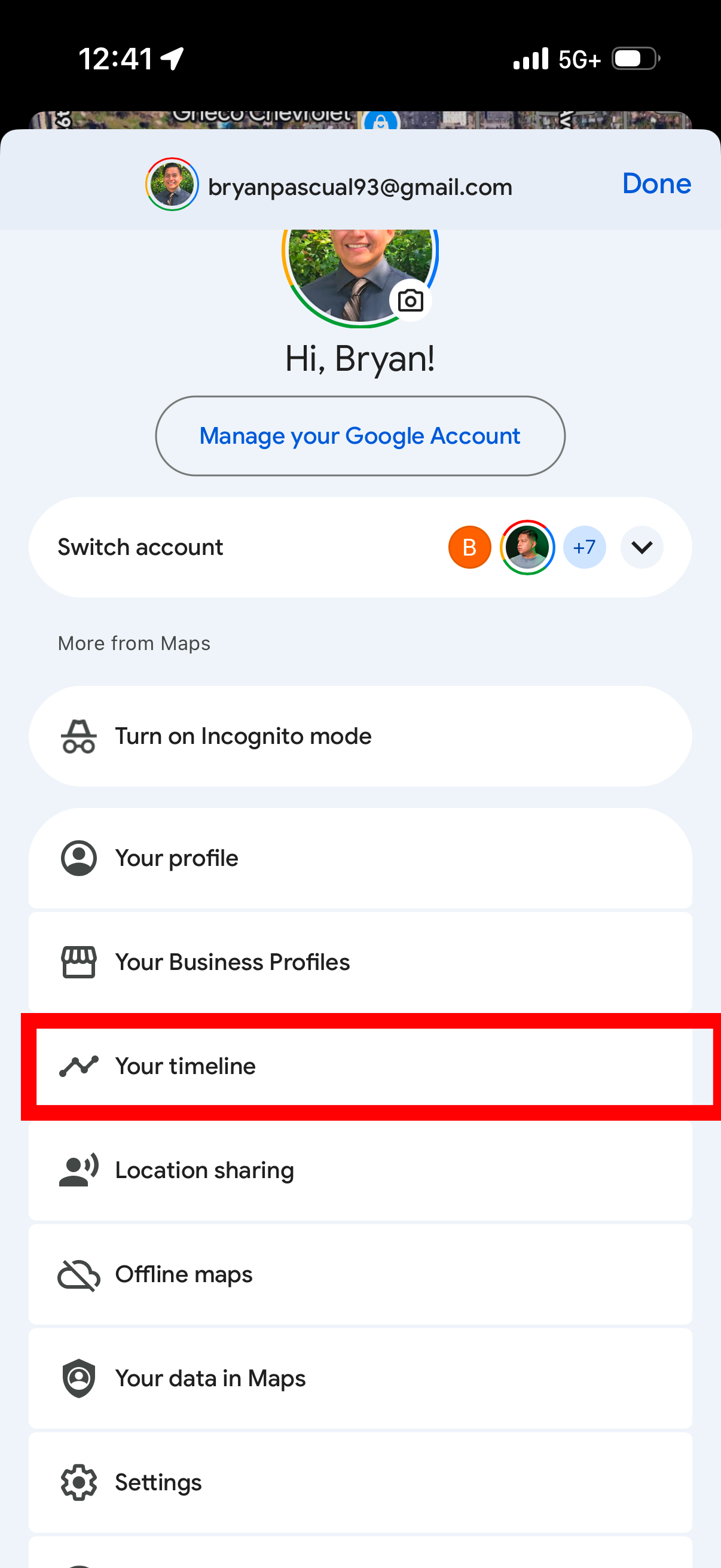
Step 2 reference
From the menu that opens, scroll to “Your timeline” and tap it.
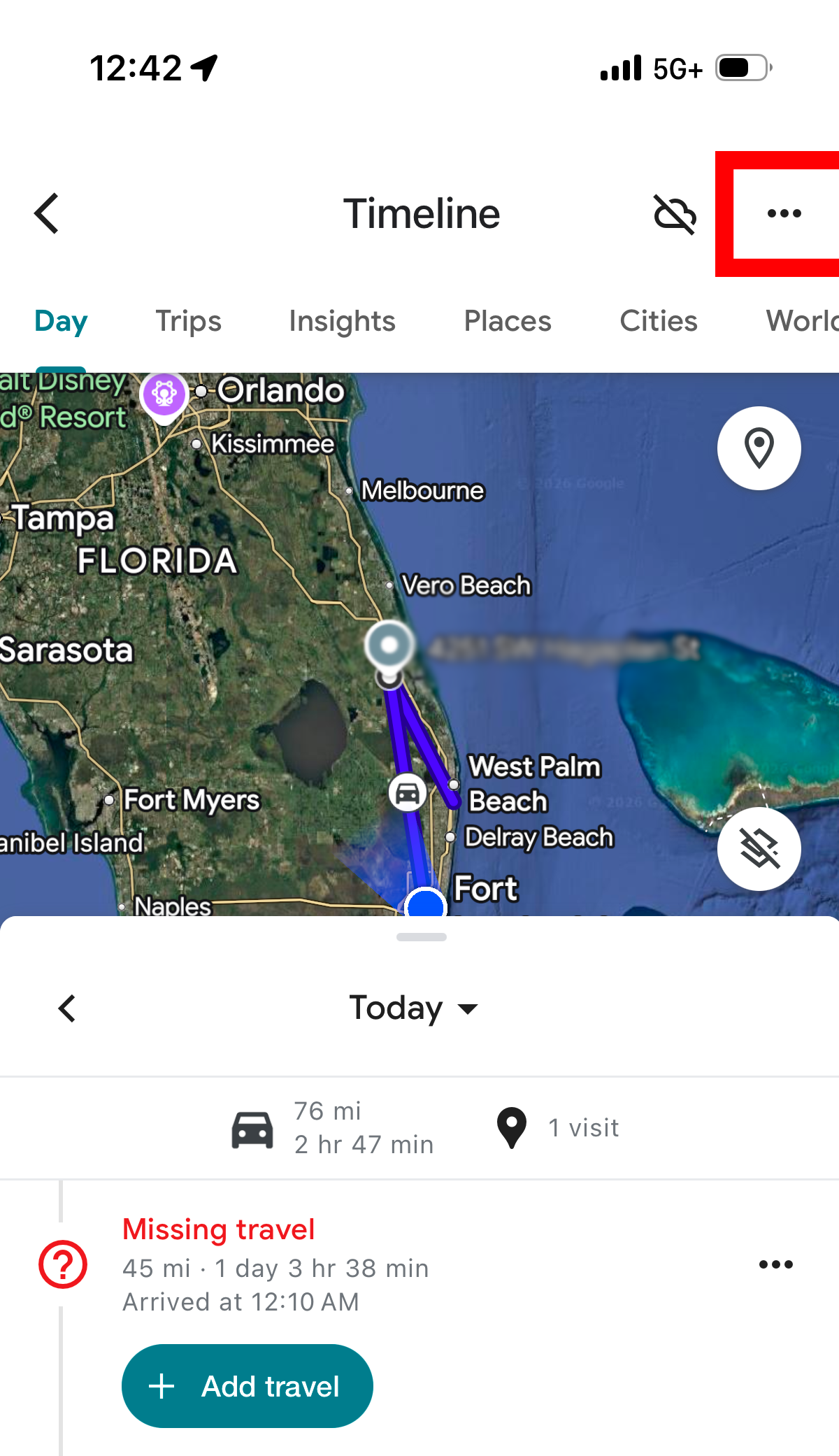
Step 3 reference
On the Timeline screen, tap the three-dot menu icon in the top-right corner.
Step 4 reference
In the menu, select “Location & Privacy Settings”.
Scroll down the settings page until you see “Export Timeline Data” and tap it.
When asked how to export, choose the email option.
Address the email to bryan@adsoncarsllc.com and hit send. That's it — you're done!
Once we receive your timeline export, our team will review it and reach out within 48 hours.